
Playing Nintendo Switch titles on an emulator provides an excellent way to experience games with enhanced resolutions and custom controller support. However, base game files only provide the initial release version of the software. To get the absolute best experience, you need to apply the latest developer patches and expansion packs.
This guide will walk you through the exact process for installing the NSP Game update in Ryujinx and managing your extra content.
We will cover the prerequisites you need before starting, step-by-step instructions for the emulator menus, and essential file management tips.
By following these steps, you will keep your digital library up to date and enjoy all the extra features your games offer.
- 1 What Are NSP Updates and DLC in Ryujinx?
- 2 Why You Should Install Game Updates and DLC
- 3 Requirements Before Installing NSP Updates
- 4 How to Install Game Updates on Ryujinx
- 5 How to Install DLC on Ryujinx
- 6 How to Confirm Everything Is Working
- 7 Common Issues and Fixes
- 8 FAQs: NSP Game Updates and DLC in Ryujinx
What Are NSP Updates and DLC in Ryujinx?
In Ryujinx, NSP files are used to install game updates and downloadable content. Updates usually improve the base game by fixing bugs or adding new features, while DLC adds extra content like new levels, characters, or expansions.
Both updates and DLC are separate from the base game file. This means you must install them manually through the emulator. Once installed correctly, Ryujinx merges them with your game automatically.
Why You Should Install Game Updates and DLC
Installing updates ensures your game runs with the latest fixes and improvements. Many games release patches after launch to fix crashes, improve performance, or unlock additional features.
DLC, on the other hand, expands your gameplay. It may include new missions, story content, or cosmetic items. By installing both updates and DLC, you get the complete version of the game, similar to playing on a real Nintendo Switch.
Requirements Before Installing NSP Updates
Before you install anything make sure your Ryujinx setup is ready. First, the base game must already be installed and visible in your game list.
You also need:
- Latest Ryujinx prod keys and firmware
- Correct NSP update or DLC file
- Matching game version (update must match the base game)
If your keys or firmware are outdated, updates may fail or cause crashes.
How to Install Game Updates on Ryujinx
Keeping your games updated improves performance, stability, and compatibility. Ryujinx makes this process simple through its built-in update manager.
Step 1: Open the Title Update Manager
Launch Ryujinx and wait for your game list to load.
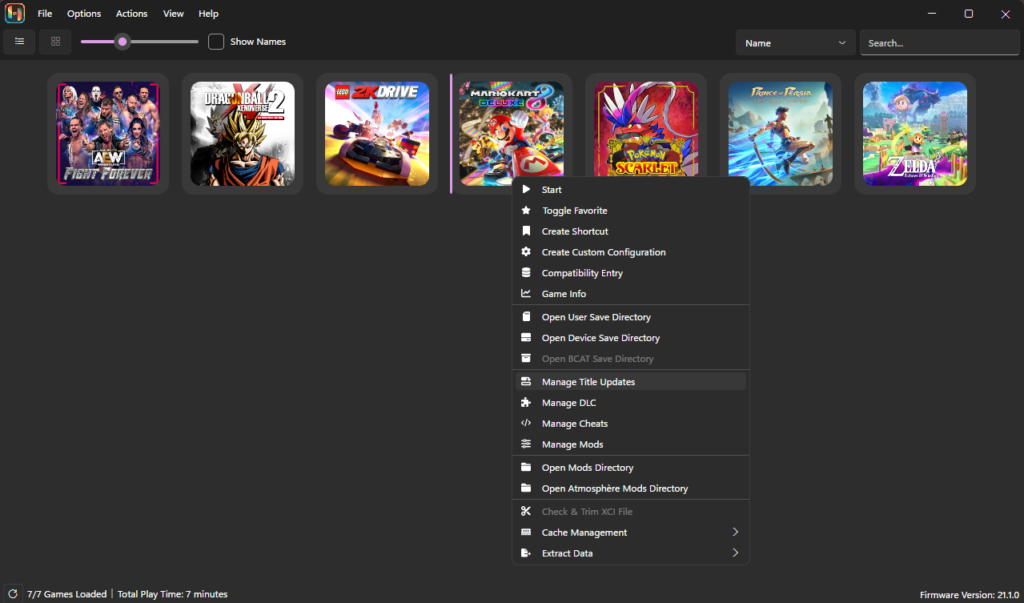
Find the game you want to update, then right-click on it and select “Manage Title Updates.”
A new window will open where you can manage all updates for that specific game.
Step 2: Add the Update File
Inside the Title Update Manager, click the “Add” button located at the bottom.
A file browser will appear. Navigate to the folder where your NSP update file is saved.
Select the file and click Open.
Once added, the update will appear in the list.
Step 3: Save and Verify
Make sure the checkbox next to the update is enabled (checked).
Click Save to apply the update.
After this, return to the main screen—you should see the game version change (for example, from 1.0.0 to 1.2.0).
How to Install DLC on Ryujinx
Installing DLC is very similar to installing updates, but it uses a separate manager.
Step 1: Open the DLC Manager
Launch Ryujinx and locate your game.
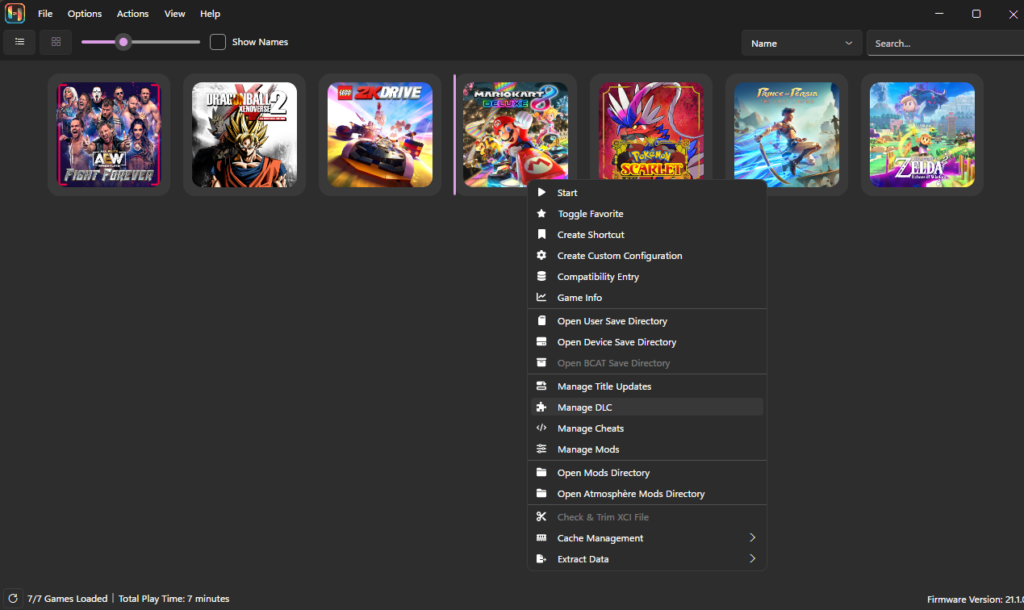
Right-click on the game and select “Manage DLC.”
This will open the DLC Manager window.
Step 2: Add DLC Files
Click the “Add” button inside the DLC Manager.
Browse to the location where your DLC NSP files are stored.
You can select one or multiple files at the same time, then click Open.
Step 3: Enable and Save
After adding the files, you’ll see them listed in the manager.
Make sure each DLC is enabled (checked or marked as True).
Click Save to finish the installation.
Check this out:- Which Games run Better on Ryujinx
How to Confirm Everything Is Working
To verify your setup:
- Launch the game
- Check the updated version number
- Look for new DLC content (characters, menus, or features)
If everything loads correctly, your update and DLC are successfully installed. By following these steps, you can keep your games fully updated and enjoy complete content on Ryujinx without any issues.
Ryujinx Unable to Find Prod Keys File? Full Troubleshooting Guide
Common Issues and Fixes
- Version Mismatch
If the update doesn’t match your base game version or region, it won’t install or apply. Always use the correct update file that matches your game. - Outdated Firmware or Keys
New updates and DLC often require the latest firmware and prod.keys. Using outdated files can cause errors, crashes, or failed installations. Keep everything updated. - Game Crashes After Update
If your game crashes after installing an update, open the update manager, disable the update, and try adding it again properly. - DLC Not Showing in Game
Make sure the DLC is enabled (checked) in the DLC Manager. If not enabled, it won’t appear in the game. - Corrupted or Incomplete Files
If the NSP file is damaged or not fully downloaded, the update or DLC may fail. Re-download the file from a trusted source. - Incorrect File Format
Ensure your update and DLC files are in NSP format. Other formats may not work correctly in the emulator.
FAQs: NSP Game Updates and DLC in Ryujinx
Can I install multiple DLC files at once?
Yes, Ryujinx allows you to select and install multiple DLC NSP files at the same time.
Do I need the internet to install updates in Ryujinx?
No, updates and DLC are installed offline using NSP files stored on your PC.
