
Installing firmware in Ryujinx is a critical step for achieving accurate Nintendo Switch emulation. The firmware replicates the console’s operating system, enabling proper game boot, system services, and compatibility with modern titles.
Without correctly installed Ryujinx firmware, you may encounter issues such as games not launching, black screens, or missing system components.
In this Ryujinx guide, I’ll walk you through everything in a clear, practical way—based on real usage. Whether you’re new to emulation or already using Ryujinx, this will help you install firmware correctly and avoid common errors.
- 1 What is Firmware in Ryujinx and Why It Matters
- 2 Why is Firmware Important in Ryujinx?
- 3 Pre-Installation Requirements
- 4 Ryujinx Firmware: Installing and Updating
- 5 Verifying Firmware Installation
- 6 Common Issues and Advanced Fixes
- 7 Best Practices for Stability
- 8 Performance Optimization Insight
- 9 Final Thoughts
What is Firmware in Ryujinx and Why It Matters
Firmware is basically the system software of the Nintendo Switch. When you install it in Ryujinx, you’re giving the emulator the core files it needs to behave like a real console.
From my experience, most issues like “game not launching” or “missing system files” come from incorrect or outdated firmware. Games are built to run on specific firmware versions, so keeping them updated helps with compatibility, stability, and performance.
Another important point is that firmware works together with prod.keys. If either one is missing or mismatched, Ryujinx won’t function properly. So always make sure both are up to date.
Ryujinx Firmware Hash Error Fix
Why is Firmware Important in Ryujinx?
Firmware plays a key role in how well games run on Ryujinx. It functions like the system software of a real Nintendo Switch, enabling the emulator to properly interpret and execute game files. If your firmware is missing, outdated, or incompatible, you’ll likely face errors, crashes, or games not launching at all.
Game Compatibility
Many Nintendo Switch games are built to run on specific firmware versions. If your installed firmware is older than what the game requires, the game may not start or could cause Ryujinx Crashing or Freezing during gameplay. Keeping firmware updated ensures better compatibility with both new and existing titles.
Bug Fixes and Stability
Firmware updates often include fixes for known issues such as graphical glitches, crashes, or performance drops. In Ryujinx, using updated firmware can noticeably improve overall stability and reduce unexpected errors while playing.
Access to System Features
Some games depend on newer system-level features introduced in recent firmware versions. Without these features, certain game functions may not work correctly. Updating firmware ensures the emulator supports those required features.
Security and Performance Improvements
Newer firmware versions also bring security patches and backend improvements. While security might not seem critical in emulation, these updates help maintain a more stable and reliable environment, reducing conflicts and improving performance.
Pre-Installation Requirements
Before installing firmware, ensure the following prerequisites are met:
- The latest version of Ryujinx Emulator is installed
- Valid Ryujinx Prod keys and title keys already configured
- Latest Ryujinx Firmware (usually in .zip or .xci format)
- Sufficient storage space and system permissions
Ryujinx Firmware: Installing and Updating
Step 1: Launch Ryujinx
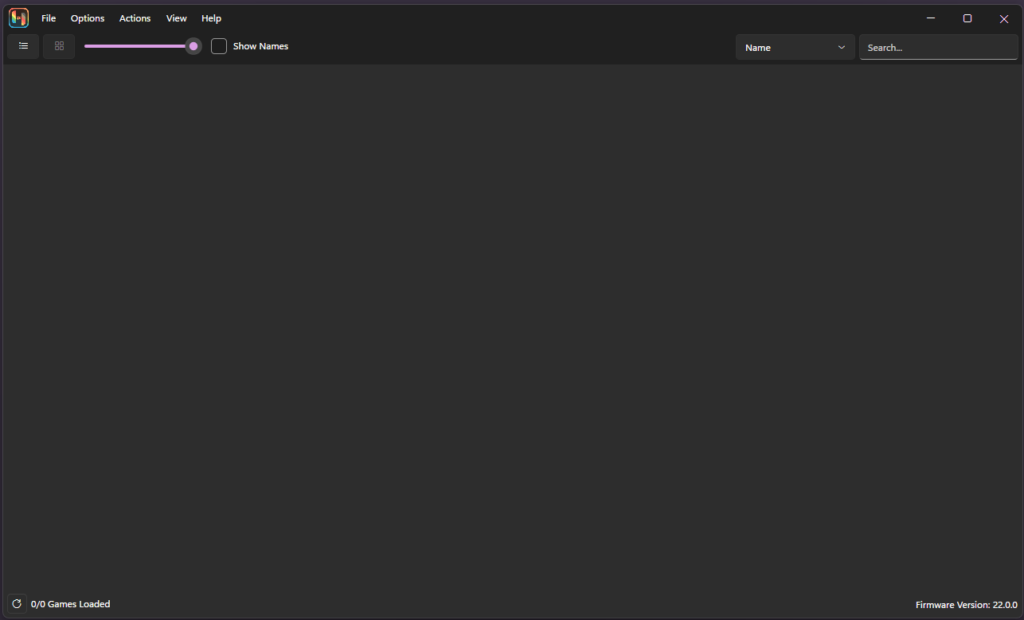
Open the Ryujinx emulator on your system (Windows, Linux, or macOS). Ensure no games are running during installation to avoid conflicts.
Step 2: Access Firmware Installer
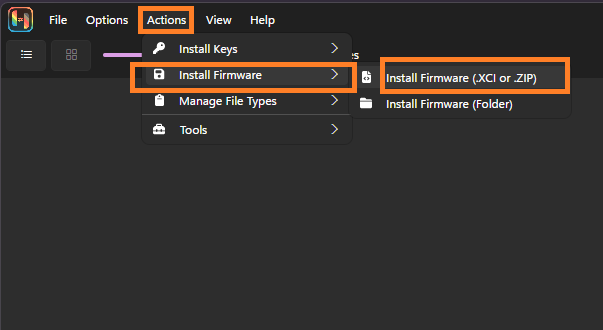
From the top navigation menu:
- Click Tools/Actions
- Select Install Firmware
You will see two installation options:
- Install from ZIP (most common method)
- Install from XCI (less common, used for specific firmware dumps)
Step 3: Select Firmware Package
Choose the firmware file you have downloaded or dumped.
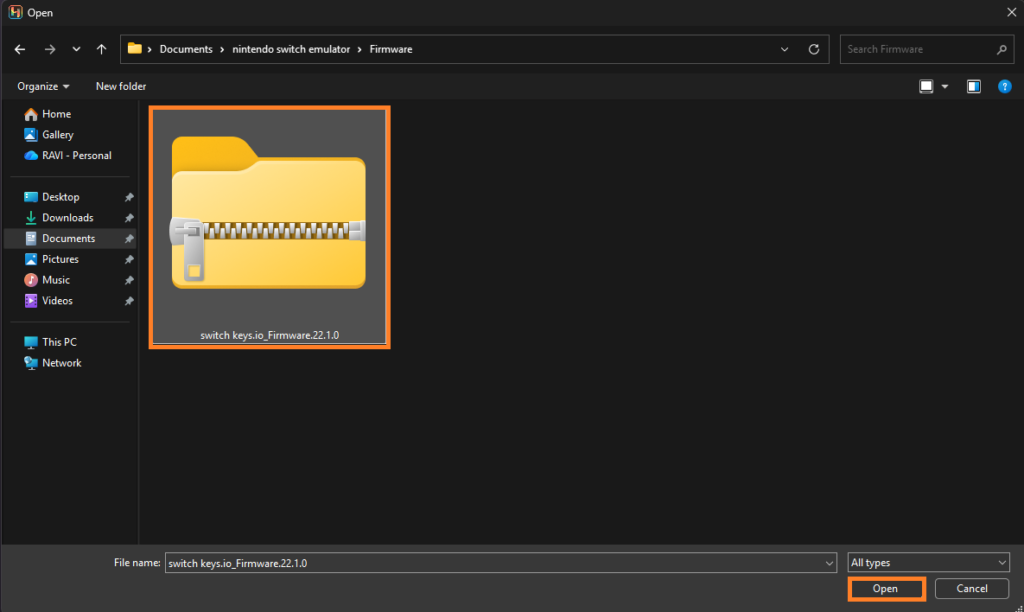
- Navigate to the firmware .zip file
- Select it and confirm the installation
- Ryujinx will begin extracting and installing system components automatically
Technical Note:
Do not manually extract firmware files. Ryujinx handles the extraction internally to maintain the correct structure.
Step 4: Wait for Installation to Complete
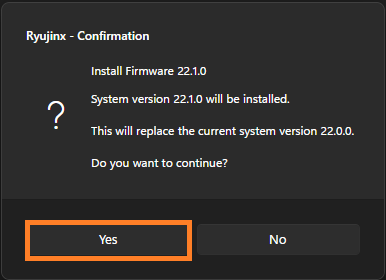
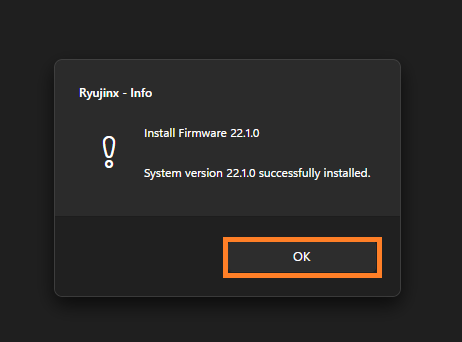
The emulator will display a progress indicator. Once complete, you will see a confirmation message indicating successful installation.
Step 5: Restart the Emulator
Close and reopen Ryujinx to ensure all firmware components are properly initialized and loaded into the system environment.
Check this out:- Which Games run Better on Ryujinx
Verifying Firmware Installation
After restarting:
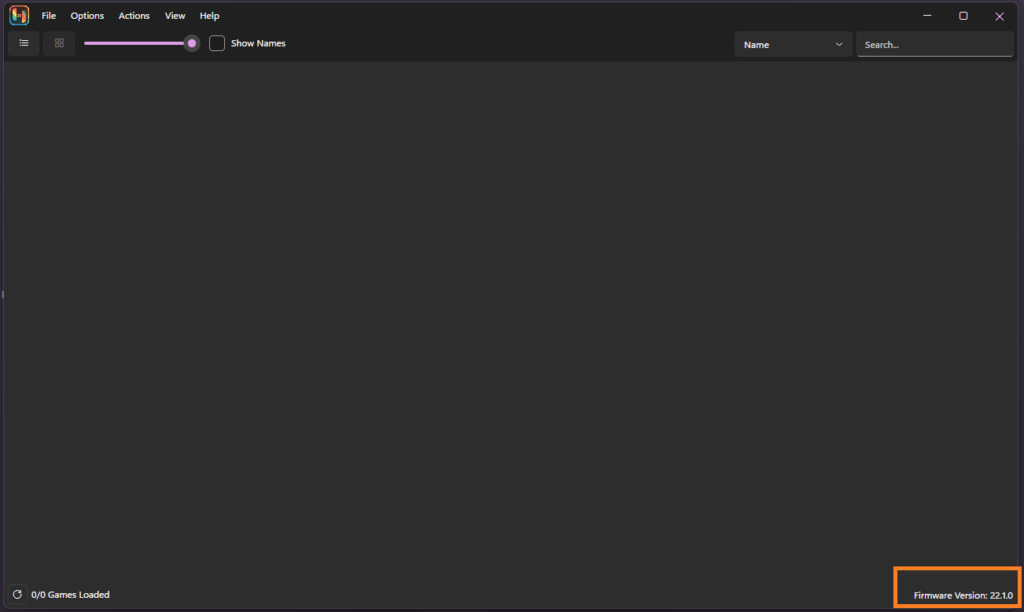
- Check the bottom-left corner of the Ryujinx window
- The installed firmware version should be displayed
Alternatively:
- Go to Help > About
- Confirm the firmware version is listed correctly
If no version appears, the installation may have failed or been incomplete.
Common Issues and Advanced Fixes
1. Firmware Not Detected
- Ensure firmware was installed via Tools > Install Firmware
- Avoid manually copying files into system folders
- Reinstall firmware if necessary
2. “Firmware Parsing Error.”
- Usually caused by outdated prod.keys
- Update keys to match firmware version
- Reinstall firmware after updating keys
3. Games Not Launching After Installation
- Check firmware-key compatibility
- Verify game file integrity (NSP/XCI)
- Clear cache if required
4. Installation Fails or Freezes
- Run Ryujinx as administrator
- Disable antivirus temporarily
- Ensure the firmware file is not corrupted
Best Practices for Stability
- Always keep Ryujinx, firmware, and keys updated together
- Use firmware dumped from your own Nintendo Switch for accuracy
- Avoid mixing firmware versions across different emulator setups
- Maintain clean directory structure (no manual file edits)
Performance Optimization Insight
Firmware impacts more than just compatibility—it also affects:
- Game boot speed
- UI rendering
- System service stability
- DLC and update handling
Using the latest stable firmware ensures better performance across modern Switch titles.
Final Thoughts
Installing firmware in Ryujinx is not just a setup step it is a foundational requirement for stable emulation.
By following a structured installation process and maintaining version compatibility between firmware and keys, you significantly reduce errors and improve overall emulator performance.
Once configured correctly, Ryujinx can deliver a near-console experience with high compatibility and consistent stability.
