

Download the latest Nintendo Switch Keys (prod.keys) and Title Keys (title.keys) compatible with the latest Firmware v23.0.0. These encryption keys are required to properly decrypt and run Nintendo Switch game files, including Ryujinx, Eden, Yuzu, Suyu, Sudachi, and Citron.
All Switch key files are regularly verified to ensure they remain compatible with the latest firmware and emulator builds. Using updated keys helps resolve common issues such as “Encryption keys are missing,” “Decryption failed,” or black screen errors that may occur when launching newer Nintendo Switch games and installing the correct prod.keys and title. Keys ensure your emulator can correctly read encrypted game data and run titles without compatibility problems.
In this guide, you’ll learn what these keys are, why they are required, and how to set them up correctly for Ryujinx, Eden, Skyline, and other compatible Nintendo Switch emulators.
The steps are explained in a clear and beginner-friendly way so you can configure your emulator and run games smoothly.
Download Nintendo Switch Keys 23.0.0 (prod.keys) & Title Keys (Latest update)
Below, you can find the latest Nintendo Switch keys available for direct download, which work with popular emulators like Ryujinx, Yuzu, Eden, and Suyu.
|
Versions |
Prod keys Link |
Firmwares Link |
|
v23.0.0 (New) |
||
|
v22.5.0 (New) |
||
|
v22.0.0 |
||
|
v21.2.0 |
||
|
v21.1.0 |
||
|
v21.0.1 |
||
|
v21.0.0 |
||
|
v20.5.0 |
||
|
v20.4.0 |
||
|
v20.3.0 |
||
|
v20.2.0 |
||
|
V20.1.5 |
||
|
V20.1.1 |
||
|
V20.1.0 |
||
|
V20.0.1 |
||
|
V20.0.0 |
||
|
V19.0.1 |
||
|
V19.0.0 |
||
|
V18.1.0 |
||
|
V18.0.1 |
||
|
V18.0.0 |
||
|
V17.0.1 |
||
|
V17.0.0 |
||
|
V16.1.0 |
||
|
V16.0.3 |
||
|
V16.0.2 |
||
|
V16.0.1 |
||
|
V16.0.0 |
Difference Between Prod.Keys and Title.Keys
Understanding the difference between Prod Keys and Title Keys is important when setting up Nintendo Switch emulators like Ryujinx or Yuzu. Both files help decrypt game data, but they serve different purposes.
Prod.Keys

- Contains the main cryptographic system keys used by the Nintendo Switch operating system.
- Required to decrypt and run encrypted NSP and XCI game files in the emulator.
- Necessary for booting Nintendo Switch firmware and launching most games.
- Usually dumped directly from a console using tools such as Lockpick_RCM.
- Stored inside the emulator’s system or keys folder so it can be detected automatically.
- Updated whenever new Nintendo Switch firmware introduces additional encryption keys.
Title.Keys
- Contains individual decryption keys for specific Nintendo Switch game titles.
- Used to unlock certain games, updates, or DLC content that require title-specific verification.
- Typically extracted alongside game files during the dumping process.
- Placed in the same emulator keys folder as prod.keys.
- Only used when a specific game requires its own title key to run properly.
- Updated when new games or updates introduce new title-based encryption keys.
How to Install Prod.Keys & Title.Keys on Switch Emulators (Suyu, Ryujinx, Yuzu, Skyline)
Nintendo Switch emulators require prod.keys and title.keys to decrypt and run game files such as NSP and XCI. If these keys are missing, the emulator may show errors like “Encryption keys are missing” or “Keys not found.”
Follow the improved step-by-step instructions below to correctly install the keys on different emulators.
Also read:- Latest Nintendo Switch Firmware 22.1.0
Install Prod.Keys & Title.Keys on Suyu Emulator
To configure keys in Suyu, follow these steps carefully.
Step 1: Download and Extract the Keys
Download the Keys.zip file and extract it on your computer using any archive tool. Inside the extracted folder, you will find two important files:

prod.keystitle.keys
These files contain the decryption data required by the emulator.
Step 2: Open the Suyu Emulator Folder
Launch the Suyu emulator. From the top menu bar, click File, then select Open Suyu Folder.
This will open the main emulator directory on your system.
You can also use the built-in option Tools → Install Decryption Keys, which allows you to select the prod.keys file directly.
Step 3: Locate the Keys Folder
Inside the emulator directory, find the folder named:
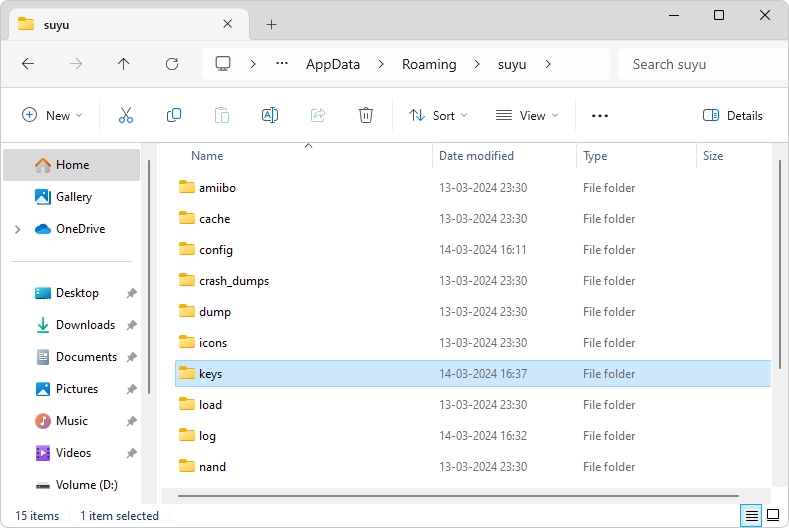
keys
This folder is specifically used to store the emulator’s decryption keys.
Step 4: Copy the Key Files
Open the folder where you extracted Keys.zip, then copy both prod.keys and title.keys.
Paste these files into the keys folder.

Step 5: Restart the Emulator
Close and reopen the emulator. Once restarted, Suyu will automatically detect the new keys, and the “Encryption keys are missing” error should be resolved.
Install Prod.Keys & Title.Keys on Ryujinx Emulator
Follow these steps to install keys in Ryujinx.
Step 1: Extract the Key Files
Download Keys.zip and extract the archive. Make sure the folder contains both required files:
prod.keystitle.keys
Step 2: Open the Ryujinx Directory
Launch the emulator. From the top menu bar, click File and then select Open Ryujinx Folder.
A new window will open showing the emulator’s main directory.
Step 3: Navigate to the System Folder
Inside the Ryujinx directory, open the following folder:
system
This folder stores important emulator files, including firmware and encryption keys.
Step 4: Paste the Key Files
Copy prod.keys and title.keys from the extracted folder and paste them directly into the system folder.
Step 5: Restart Ryujinx
Close the emulator and launch it again. Once restarted, Ryujinx will detect the keys and the “RYU-0001 Keys not found” error should no longer appear.
Install Prod.Keys & Title.Keys on Yuzu Emulator
Here is the correct method to install keys in Yuzu.
Step 1: Download and Extract the Keys
Download Keys.zip and extract the archive. The extracted folder should contain:
prod.keystitle.keys
Step 2: Open the Yuzu Folder
Launch the emulator. From the menu bar, click File and then select Open Yuzu Folder.
This will open the main Yuzu directory.
Step 3: Open the Keys Directory
Inside the Yuzu folder, locate and open:
keys
This is the location where Yuzu reads the key files.
Step 4: Add the Keys
Copy prod.keys and title.keys from the extracted folder and paste them into the keys folder.
Step 5: Restart the Emulator
Restart Yuzu so the emulator can load the newly added keys and remove the “Encryption keys are missing” error.
Install Prod.Keys & Title.Keys on Skyline Emulator
You can also import keys in Skyline using the emulator settings.
Step 1: Extract the Keys Archive
Download Keys.zip and extract it. Ensure the extracted folder contains:
prod.keystitle.keys
Step 2: Open Skyline Settings
Launch Skyline and click the gear icon located in the top-right corner to open the settings menu.
Step 3: Import the Production Key
In the settings menu, locate the Production Key option. Tap it and browse to the location where prod.keys is stored, then confirm the import.
Step 4: Import the Title Key
Next, select the Title Key option and import the title.keys file from the same folder.
Step 5: Confirm Installation
After both files are imported, Skyline will display a confirmation message indicating that the keys were successfully added. The emulator will now be able to decrypt and run game files properly.
Where to Put Prod.Keys and Title.Keys in Ryujinx (Default Keys Folder Locations)
In the Ryujinx, the prod.keys and title.keys files must be placed inside the emulator’s system keys directory so it can decrypt Nintendo Switch games and system data correctly. Without these keys, the emulator cannot read encrypted NSP or XCI game files.
If you are installing the keys manually, navigate to the appropriate folder based on your operating system or device and place the key files there.
Windows
C:\Users\USERNAME\AppData\Roaming\Ryujinx\system
macOS
/Users/USERNAME/.config/Ryujinx/system
Linux (Ubuntu, Fedora, Arch, etc.)
/home/USERNAME/.config/Ryujinx/system
Steam Deck / EmuDeck
/home/deck/.config/Ryujinx/system
Flatpak Installation (Linux)
/home/USERNAME/.var/app/org.ryujinx.Ryujinx/config/Ryujinx/system
Portable Ryujinx Installation
Ryujinx/portable/system
After copying prod.keys and title.keys into the correct folder, restart Ryujinx so it can detect the keys automatically. Using updated and compatible keys helps prevent common issues such as missing encryption key errors, decryption failures, or games not launching properly.
Frequently Asked Questions (FAQs)
What are “prod.keys” and “title.keys” and why do I need them for Nintendo Switch emulators?
Switch prod.keys and “title.keys” are cryptographic switch keys that are necessary for decrypting Nintendo Switch game files. These keys are vital for emulators like Eden, Ryujinx, and Skyline to run games properly, as they enable the emulator to decrypt the game’s data, which is encrypted to prevent piracy.
Can I use the same prod.keys and title.keys with different Nintendo Switch emulators?
Yes. The same prod.keys and title.keys can be used across multiple Nintendo Switch emulators such as Ryujinx, Yuzu, and Skyline. As long as the keys match the required version, they will work with most compatible Switch emulation platforms.
