
Updating your Nintendo Switch games and installing DLC on the Citron Emulator can improve game stability, fix bugs, and unlock additional content that enhances gameplay.
Whether you’re applying a game patch or installing expansion content, keeping your games updated helps ensure a smoother experience on Android.
Citron is a modern Nintendo Switch emulator built specifically for Android devices, designed to run Switch titles with better mobile optimization and performance.
One useful feature of the emulator is the ability to manually install game updates and DLC, allowing games to run with the latest improvements and extra content.
In this guide, you’ll learn how to install game updates and DLC on Citron Android step by step. The process is simple, and following the correct steps will help avoid common errors or compatibility issues while running your games.
Prerequisites Before Installing Updates or DLC
Before installing game updates or additional content on Citron Android, make sure the following requirements are met.
- A compatible Android device capable of running the Citron emulator smoothly
- Enough free storage space for the update or DLC files
- A file manager app to organize and locate game files
- Game update or DLC files in supported formats such as NSP, XCI, or NCA
- Citron – Emulator installation folder
- Games – Base game files (.NSP / .XCI / .NCA)
- Firmware – Nintendo Switch firmware files
- Keys – prod.keys and title.keys
- DLC – downloadable content files
- Updates – game update files
- Saves – game save data managed by the emulator
Keeping files organized makes installation faster and avoids mistakes when selecting files.
- 1 How to Install Game Content and DLC on Citron Android
- 2 How to Bulk Install Game Updates and DLC in Citron Switch Emulator for Android
- 3 How to Install Game Updates on Citron Android
- 4 Can You Delete Update and DLC Files After Installation?
- 5 How to Transfer Everything From Citron PC to Citron Android (Games, Saves, DLC, Firmware)
- 6 Organize Your Citron PC Folders
- 7 Transfer Citron Files From PC to Android
- 8 Final Tip
How to Install Game Content and DLC on Citron Android
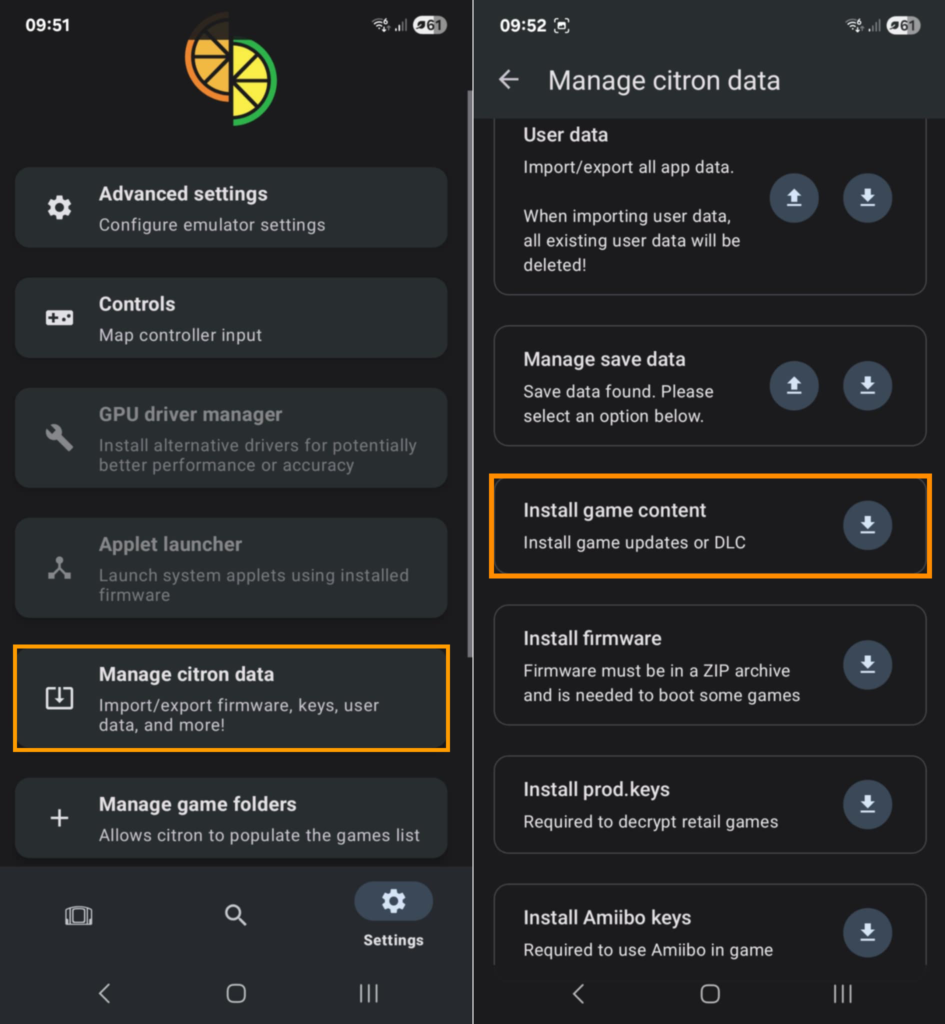
Installing DLC or additional game content in Citron is done directly inside the emulator.
Step 1: Transfer DLC Files to Your Android Device
Copy your DLC files from your PC or storage drive to your Android device. Place them inside a clearly named folder so they are easy to find.
Step 2: Open the Citron Emulator
Launch the Citron Emulator on your Android device.
Step 3: Open Settings
Tap the Settings icon located in the bottom-right corner of the emulator interface.
Step 4: Select Manage Citron Data
Inside the settings menu, tap Manage Citron Data to access installation options.
Step 5: Choose Install Game Content
Tap Install Game Content, then select DLC or Updates depending on the type of file you want to install.
Step 6: Select the DLC File
Browse to the folder where your DLC files are stored and select the file you want to install.
You can install multiple DLC files by selecting them together.
The emulator will automatically install each file. Small files usually install in seconds, while larger packages may take a few minutes depending on your device’s speed.
How to Bulk Install Game Updates and DLC in Citron Switch Emulator for Android
Installing multiple game updates and DLC files at once in the Citron Switch Emulator can save you time and effort. Follow this step-by-step guide to bulk install your game content efficiently:
Step 1: Transfer Files to Your Android Device
Move your DLC and update files from your computer or storage drive to your Android device. To keep things organized, create a dedicated folder for each game and place its DLC and update files inside. If you prefer, you can also download the files directly onto your device from trusted sources.
Step 2: Open the Citron Emulator
Launch the Citron emulator on your Android device. Once you’re on the main interface, locate the Settings icon in the bottom-right corner of the screen and tap it.
Step 3: Access Manage Citron Data
Inside the settings menu, select Manage Citron Data. This section allows you to manage and install game content, including updates and DLC.
Step 4: Select Install Game Content
Tap on Install Game Content. You will be prompted to choose the type of content you want to install. Select either Updates or DLC, depending on what you’re installing.
Step 5: Locate Your Files
Navigate to the folder where your DLC or update files are stored.
Step 6: Bulk Select Files
To install multiple files at once:
- Press and hold on one file until the selection boxes appear.
- Select all the files you wish to install by tapping on them.
Step 7: Complete the Installation
Once you’ve selected the files, the emulator will automatically begin installing them in sequence. The installation process is usually quick, but larger files may take a few minutes depending on their size and your device’s performance.
Tips for Bulk Installation
- Organize Your Files: Keeping each game’s files in separate folders makes it easier to locate and install them.
- Check Compatibility: Ensure your DLC and update files match the version of the base game and firmware installed on your emulator.
- Use Trusted Sources: Download files only from reliable websites to avoid corrupted or incompatible files.
How to Install Game Updates on Citron Android
Installing updates follows almost the same process as installing DLC.
Step 1: Transfer the update files to your Android device.
Step 2: Open Citron and tap the Settings icon.
Step 3: Go to Manage Citron Data.
Step 4: Tap Install Game Content.
Step 5: Choose Updates and select the update file.
After installation, the next time you launch the game, Citron will automatically load the latest version.
Can You Delete Update and DLC Files After Installation?
Yes, once the installation is complete, you can delete the original update or DLC files to free up storage space.
Citron copies the installed data internally, so the original installation files are no longer required. However, you must keep the base game file because the emulator needs it to run the game.
If you want to reinstall the update or DLC later, you will need to copy the files back to your device again.
How to Transfer Everything From Citron PC to Citron Android (Games, Saves, DLC, Firmware)
You can transfer your complete Citron setup from PC to Android by copying the main emulator folders—games, saves, firmware, keys, updates, and DLC—from your computer to your Android device. Once these folders are placed in the same structure on Android, the Citron Emulator will automatically recognize them when you launch the app.
Before starting the transfer, it’s important to organize your folders correctly on your PC. A clean folder structure helps avoid missing files, game errors, or lost save data when moving everything to your Android device.
Organize Your Citron PC Folders
First, make sure your folders on the PC are arranged like this:
Citron
│
├── Games      (NSP, XCI, NCA game files)
├── Firmware   (Nintendo Switch firmware files)
├── Keys       (prod.keys and title.keys)
├── DLC        (downloadable game content)
├── Updates    (game update files)
└── Saves      (game save data)
On Windows, Citron typically stores save data in the following location:
C:\Users\USERNAME\AppData\Roaming\Citron
This directory contains important emulator data, including save files and configuration settings. Copying it ensures your progress and settings move with you.
Transfer Citron Files From PC to Android
After organizing everything on your PC, connect your Android device to the computer using a USB cable or transfer the files using cloud storage.
Now copy the main Citron folder to your Android device so the structure remains the same:
Citron
│
├── Games
├── Firmware
├── Keys
├── DLC
├── Updates
└── Saves
Keeping the same structure helps the emulator quickly locate your files. Once transferred, open the Citron Android emulator and select the Games folder when asked to scan for game files. The emulator will automatically detect your games, updates, DLC, and save data.
Common Issues and Troubleshooting Tips
- Files Not Detected: Ensure the files are in the correct format (
.NSP,.XCI, or.NCA) and placed in an accessible folder. - Installation Errors: Verify that your firmware matches the game’s requirements.
- Game Crashes After Update: Check if the update file is compatible with your game version. Reinstall the update if necessary.
- Slow Installation: Larger files may take time to install. Ensure your device has sufficient storage and processing power.
Final Tip
Installing game updates and DLC on the Citron Switch Emulator for Android is a simple yet essential process to enhance your gaming experience. By following this guide, you can ensure your games are up to date, enjoy additional content, and keep your emulator running smoothly.
For the best results, always use trusted sources for your files, keep your emulator updated, and maintain an organized file structure. With these tips, you’ll be ready to enjoy your favorite Nintendo Switch games on your Android device without any hassle!
