

Playing Nintendo Switch games on a PC through the Eden Emulator offers incredible convenience, but to experience games in their full capacity, installing updates and DLC is essential. Without these, many titles may lack critical features, new levels, or additional characters, limiting the overall gameplay experience.
Whether you are a seasoned emulator user or just starting with Switch Emulators, understanding how to correctly apply updates and DLC ensures that your games run smoothly, remain stable, and provide access to all content.
This guide walks you through the complete process, including system requirements, necessary files like Eden Firmware, prod keys, and title keys, and a clear step-by-step installation process.
By following this structured approach, you’ll be able to manage updates and DLC efficiently, maximizing the performance of your Eden Emulator and unlocking the full potential of your games.
System Requirements for Eden Emulator
Minimum Requirements:
- OS: Windows 10 / Linux / Android
- RAM: 8 GB (16 GB recommended)
- CPU: Intel i5 or equivalent
- GPU: Vulkan/OpenGL support
- Storage: 20–30 GB free
Required Files:
- Switch Firmware compatible with your emulator version (latest recommended)
- Latest Eden Prod keys or newer
Without proper switch keys and firmware, games, updates, or DLC may not work.
Why You Should Install Game Updates and DLC
Installing game updates and DLC in your Eden emulator is more than just adding extra content; it makes your gaming experience smoother, more complete, and more enjoyable. Here’s why it matters:
- Fixes Bugs and Glitches
Updates often solve problems in the base game. Without them, your game might crash, freeze, or behave strangely. Installing updates ensures your game runs as intended. - Adds New Features and Content
DLC brings new levels, characters, or tools that weren’t in the original game. Without DLC, you miss out on these extra adventures. - Improves Compatibility
Many DLCs require the latest Switch firmware and product keys to work. Updates make sure your game is ready for these additions, preventing errors or missing content. - Enhances Performance
Updates can improve speed, fix slowdowns, and optimize graphics. Your gameplay feels smoother and more responsive. - Keeps Games Future-Proof
Whenever a new major game or expansion comes out, installing updates first ensures the DLC will work properly and prevents conflicts with title keys or NSP files.
What are the Important Checks before Installing
- Firmware Check: Make sure your Eden Firmware is up to date. Using outdated firmware can prevent DLC or updates from loading.
- Prod Keys Verification: Confirm that prod keys, title keys, are in the correct folder. This includes Eden Switch Prod keys v22.1.0 or newer.
- Game Version Compatibility: The update or DLC must match the game version; otherwise, it won’t install.
- Storage Space: Ensure enough free storage is available, as some updates and DLC can be several gigabytes.
- Installation Order: Always follow this sequence: Game → Update → DLC. Skipping this order can prevent proper installation.
Performing these checks avoids errors and ensures a smoother installation process.
How to Install Game Updates on Eden Emulator
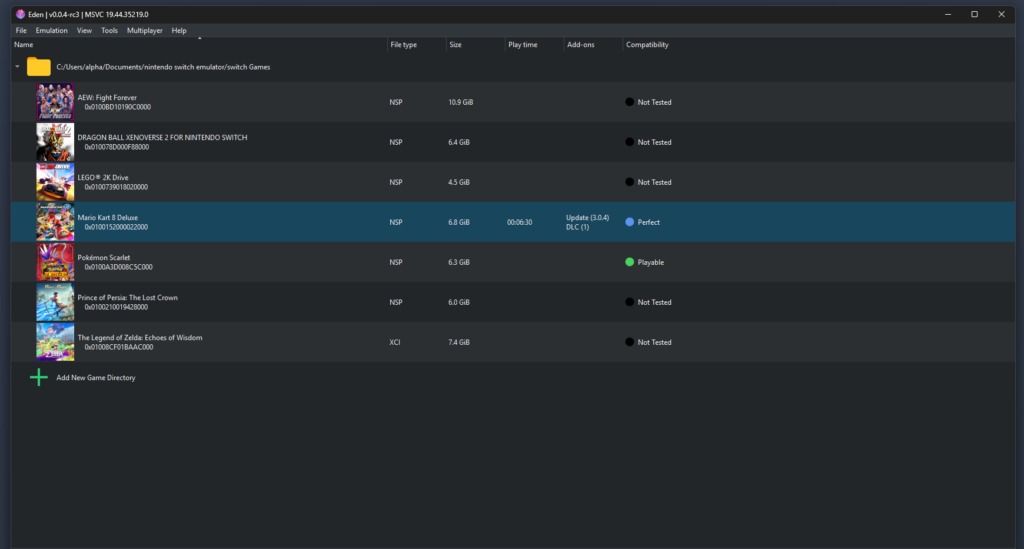
Step 1: Launch Eden Emulator
Open your Eden emulator on your computer. Wait for the main screen to load completely. You should see your game library sitting there.
Step 2: Access the file menu
Click on the “File” option. You will find it in the top left corner of the window. A drop-down menu will appear immediately.

Step 3: Choose the NAND option
Select “Install Files to NAND” from that list. A standard file browser window will pop up on your screen.

Step 4: Select your update file
Find the folder where you saved your NSP update file. Click on the file to select it. Then click open. The emulator will start installing the file right away.


Step 5: Wait for completion
You will see a progress bar on the screen. Do not click away or close the program while it works. Just let it finish the job.

Step 6: Verify the installation
A success message will pop up when it is done. Close the emulator completely. Reopen it to refresh the system. Right-click your game and hit properties. You should see the new version number displayed there.

How to Install DLC on the Eden Emulator
Adding new content packs works exactly like adding an update. You do not need to drag files into hidden folders. The software does the heavy lifting for you.
Step 1: Prep your DLC files
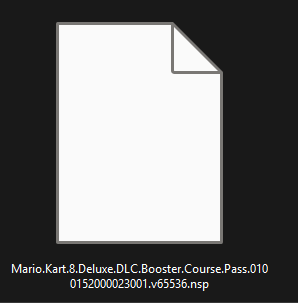
Find your downloaded DLC files. Make sure they are in the standard NSP format. Place them in a folder that is easy to find on your desktop.
Step 2: Open the installer
Open your emulator back up. Click “File” again. Select “Install Files to NAND” from the drop-down menu.
Step 3: Pick your content
Find your DLC file in the file browser. Select it and click open. The installation will begin automatically.

Step 4: Install files one by one
If you have multiple content packs, do them one at a time. It takes a little longer. But it prevents the software from freezing or crashing entirely.

Step 5: Restart the software
Wait for the success message to appear. Close the program and start it again. Now you can launch your game. Check the main menu or your character roster. Your new content should be right there.
How to Manage DLC and Updates on Eden Emulator
Managing updates and DLC ensures your games continue to run smoothly over time.
- Check Installed Content: Right-click your game in the emulator and view properties to see installed updates and DLC.
- Verify Keys: Ensure prod keys and title keys are correct and up to date.
- Reinstallation if Needed: If DLC or updates fail, you can reinstall by repeating the steps above.
- Keep Firmware Updated: Updating Eden Firmware regularly helps prevent errors.
This management process keeps your games stable and guarantees that updates and DLC work as expected.
Common Issues and Solutions
DLC Not Showing:
- Ensure updates were installed first.
- Restart the emulator.
- Confirm prod keys and firmware are correct.
Update Not Working:
- Make sure the update file matches your game version.
- Update to the latest Switch firmware if needed.
Game Crashes:
- Check for missing switch keys or incorrect prod keys.
- Verify system meets minimum requirements.
Following these steps resolves most common issues.
Frequently Asked Questions (FAQs)
How to add updates and DLC in Eden?
To add updates and DLC in Eden Emulator:
1. Open Eden Emulator and ensure your base game is already installed.
2. Go to File → Install Files to NAND.
3. Select the .NSP update or DLC file from your computer.
4. Install updates first, followed by DLCs.
5. Restart the emulator after installation to refresh the system.
Does Eden Emulator run NSP files?
Yes, Eden Emulator supports .NSP files. These files are commonly used for Nintendo Switch games, updates, and DLCs. Ensure you have the correct prod keys, title keys, and firmware to run .NSP files smoothly.
How to put firmware on Eden Emulator?
To add firmware to Eden Emulator:
1. Download the latest Switch Firmware from a trusted source.
2. Open Eden Emulator and go to Tools→ Install Firmware.
3. Select the firmware file and confirm the installation.
4. Restart the emulator to apply the firmware update.
What is the NSP ROM update?
An NSP ROM update is a file that updates a Nintendo Switch game to its latest version. It includes bug fixes, new features, and compatibility improvements. These updates are essential for accessing new content and ensuring the game runs smoothly on emulators like Eden.
How to install NSP update or DLC?
1. Launch Eden Emulator and wait for the main screen to load.
2. Click on File in the top menu and select Install Files to NAND.
3. Browse and select the .NSP file for the update or DLC.
4. Confirm the installation and wait for the success message.
5. Restart the emulator and verify the update or DLC in the game properties.
Conclusion
Setting up an emulator can take a little time at first, but once everything is ready, installing updates and DLC becomes quick and simple.
Keep your files neatly organized, make sure the game and DLC regions match, and update your keys whenever a new major release comes out. If you follow these basic steps, you will avoid most common problems.
Now go ahead, start your game, and enjoy the new content. And once you try it, drop a comment and share how your experience was—it might help others too.
