

If you’re using the Yuzu Emulator and keep seeing errors like “Encryption keys are missing,” or games won’t launch, the issue is usually related to incorrect firmware or prod.keys setup.
Many users install Yuzu but get stuck at this stage because they don’t know the exact file location or the correct method. The truth is, Yuzu won’t work properly until both firmware and prod.keys are placed in the right directories. This guide will walk you through everything clearly so that you can set it up without confusion.
- 1 What You Need to Get Started with Yuzu
- 2 Where to Install Yuzu Firmware (Correct Location)
- 3 Where to Install Yuzu Prod.Keys (Correct Location)
- 4 Yuzu Important File Locations (Windows)
- 5 How To Install prod.keys & title.keys On Yuzu Emulator and Resolve “Encryption keys are missing” Error
- 6 Troubleshooting Common Yuzu Errors
- 7 Frequently Asked Questions (FAQs)
What You Need to Get Started with Yuzu
Before you begin the Yuzu Prod Keys & Firmware Complete Installation Guide, it’s important to understand that installing the emulator alone is not enough. To run games properly on the Yuzu Emulator, you need a few essential files.
📌 Required Files:
- Yuzu Prod.keys and title.keys
- Nintendo Switch firmware files
- Game files (NSP / XCI format)
These components are necessary because Yuzu needs to replicate the Nintendo Switch system environment. The keys handle decryption, the firmware provides system-level support, and the game files contain the actual content you want to run.
Without properly setting up yuzu keys and firmware, the emulator will not be able to load games and may show errors
Where to Install Yuzu Firmware (Correct Location)
Firmware files are required to recreate the Switch system environment inside Yuzu. Without them, many games will fail to boot or crash.
Check out:- Latest Nintendo Switch Firmware v22.1.0
Steps to Install Firmware:


- Open the Yuzu Emulator
- Click on File (top menu)
- Select Open Yuzu Folder
- Navigate to the following path: nand > system > contents > registered
- Now extract your firmware files (if they are in ZIP format)
- Copy all extracted firmware files into the “registered” folder
After Installation:
- Firmware will be detected automatically
- Games that previously failed to launch should now work properly
Where to Install Yuzu Prod.Keys (Correct Location)
Prod.keys are essential for decrypting game files. Without them, Yuzu cannot read or load any game data.
Steps to Install Prod.Keys:


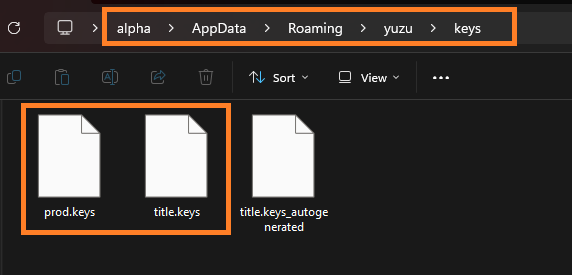
- Open Yuzu Emulator
- Click on File → Open Yuzu Folder
- Locate or create a folder named: keys
- Place your prod.keys file inside this folder
Final Path Example:
yuzu > keys > prod.keys
After Installation:
- “Keys missing” error will be resolved
- The emulator will be able to load games
Check this:- Latest Yuzu Prod Keys v22.1.0
Yuzu Important File Locations (Windows)
If you’re setting up or troubleshooting the Yuzu Emulator, knowing the exact file locations can save you a lot of time. These folders store critical data like keys, firmware, saves, and cache files.
Below is a clean and complete overview of all important Yuzu file paths:
🔑 Keys Folder (Prod.keys & Title.keys)
C:\Users\YourUsername\AppData\Roaming\yuzu\keys
- Stores prod.keys and title.keys
- Required for decrypting and running games
- If this folder doesn’t exist, you can create it manually
⚙️ Firmware Location
C:\Users\YourUsername\AppData\Roaming\yuzu\nand\system\contents\registered
- Contains installed Nintendo Switch firmware files
- Required for proper game boot and compatibility
- Make sure firmware files are extracted correctly
🎮 Game Save Data
C:\Users\YourUsername\AppData\Roaming\yuzu\nand\user\save
- Stores your game progress and save files
- Useful for backup or transferring saves
🧠 Shader Cache Folder
C:\Users\YourUsername\AppData\Roaming\yuzu\cache\shader
- Stores compiled shaders to improve performance
- Deleting this can fix stuttering or graphical issues
📁 Game Cache & Temporary Files
C:\Users\YourUsername\AppData\Roaming\yuzu\cache
- Contains temporary data and cache files
- Clearing this can fix crashes or loading issues
📊 Log Files (Error Tracking)
C:\Users\YourUsername\AppData\Roaming\yuzu\log
- Stores logs for debugging errors
- Helpful when troubleshooting crashes or bugs
How To Install prod.keys & title.keys On Yuzu Emulator and Resolve “Encryption keys are missing” Error
If you receive the “Encryption keys are missing” error, here’s how to resolve it:
- Check File Location: Ensure that your prod.keys and title.keys are placed in the keys folder inside the Yuzu emulator folder.
- Ensure You Have the Correct Keys: If your prod.keys is outdated (check that you have v22.1.0 keys), the emulator might not work. Make sure to extract the latest keys.
- Reboot the Emulator: After moving the keys and firmware files, restart the Yuzu Emulator for the changes to take effect.
By following these steps, the “Encryption keys are missing” error should no longer appear, and Yuzu should be ready to run your Switch games.
Also read:- Yuzu Emulator The NCA File Has a Bad Header Error
Troubleshooting Common Yuzu Errors
Sometimes, even with the correct keys and firmware, you might encounter issues. Here are a few common errors and how to fix them:
- “Yuzu is Crashing”: Make sure your system meets the minimum requirements. If you’re running on a low-end PC, try lowering the graphics settings.
- “Game Not Loading”: Ensure that you have the latest Switch prod keys, title.keys, and Switch firmware installed.
- “Audio Issues”: Try updating your audio drivers or checking the Yuzu settings to configure the audio output correctly.
- Emulator Crashes When Starting a Game: This usually indicates a problem with your firmware. Go back to the
nand/system/contents/registeredfolder. Did you delete all the old files before putting the new ones in? If old files are mixed with new ones, the program will crash. Clear the folder completely and paste the new files again. - Updates and DLC Are Not Working: If your extra game content is not loading, it might be because your firmware is too old. Some newer updates require the latest firmware to run. Try updating to the newest version available. Also, ensure your title keys are completely up to date, as they handle the specific locks for add-on content.
Frequently Asked Questions (FAQs)
Where to Put Yuzu Updates?
Yuzu updates, including game updates and DLC, should be placed in the correct directory within the emulator. First, ensure you have the latest prod keys and firmware installed, as updates often require them. Then, follow these steps:
1. Open the Yuzu Emulator and navigate to the File menu.
2. Select Install Files to NAND, then Game folder, and add Update/DLC files.
3. Browse to the update file (usually in .nsp or .xci format) and select it.
4. Yuzu will automatically install the update to the correct location.
This ensures your updates are properly integrated and ready to use.
How to Put Firmware on Yuzu?
1. Extract the Firmware Files: Use tools like 7-Zip or WinRAR to extract the firmware files from the downloaded archive.
2. Locate the Registered Folder: Open Yuzu, go to File > Open Yuzu Folder, and navigate to nand/system/contents/registered
3. Paste the Firmware Files: Copy all the extracted firmware files and paste them into the registered folder.
4. Restart Yuzu: Close and reopen the emulator to ensure the firmware is properly loaded.
This process allows Yuzu to emulate the Nintendo Switch operating system effectively.
Are Yuzu Keys Legal?
The legality of Yuzu keys depends on how you obtain them. Prod keys and title keys must be extracted from a Nintendo Switch console that you own. Downloading these keys from unauthorized sources is illegal and violates copyright laws. Always ensure you are extracting the keys yourself to stay within legal boundaries.
How to Add Keys and Firmware to Yuzu?
Adding keys and firmware to Yuzu is straightforward. Here’s how to do it:
Adding Keys:
1. Open Yuzu and go to File > Open yuzu Folder.
2. Locate the keys folder. If it doesn’t exist, create one manually.
3. Copy your prod.keys and title.keys files into the keys folder.
4. Restart Yuzu to apply the changes.
Adding Firmware:
1. Extract the firmware files using 7-Zip or WinRAR.
2. Open Yuzu and navigate to File > Open yuzu Folder.
3. Go to nand/system/contents/registered and paste the firmware files there.
4. Restart the emulator to complete the setup.
By following these steps, you’ll ensure your Yuzu Emulator is fully equipped to run games without errors.
Final Words
Setting up firmware and prod.keys correctly is the most important step when using the Yuzu Emulator. Once everything is in the right place, most errors disappear and games start running as expected.
Take your time to follow each step carefully. Once done, your emulator will be ready for a much smoother and more stable gaming experience.
