

If you want to play Nintendo Switch games on your phone, setting up the Eden Emulator on Android is the first step.
Many users install the app but get stuck with errors like “keys missing,” black screens, or games not loading. Most of these issues happen because the setup is not done correctly.
In this guide, I’ll walk you through the full process in a simple way. You’ll learn how to install Eden, add required files, configure settings, and fix common issues so your games run smoothly.
Requirements to Run Eden Emulator on Android
Before starting, make sure your device meets the basic requirements. Running a Switch emulator on Android needs a decent phone; you may face lag or crashes.
You should have:
- A mid-range or high-end Android device (Snapdragon processor recommended)
- At least 6GB RAM (8GB+ for better performance)
- Enough storage space for games and files
- Latest Android version (Android 10 or above)
You will also need:
- Eden Emulator APK
- Eden Prod keys file
- Eden Firmware files
- Game files (NSP/XCI format)
All these files must be properly set up for the emulator to work.
Eden Emulator Android Setup Guide (Step-by-Step)
Setting up the Eden Emulator on Android is simple if you follow each step carefully. During the first launch, the emulator will guide you through the basic setup process, including adding keys, firmware, and games.
Download and Install Eden Emulator APK
Start by downloading the latest Eden Emulator APK from the official site eden-emu.dev/download. Always avoid outdated or modified versions, as they can cause compatibility issues.

Once downloaded, open the APK file and install it on your device. If installation is blocked, enable “Install from Unknown Sources” in your phone settings.
After installation, open the app once to make sure it launches correctly. The first launch may take a few seconds as the emulator initializes its files.
Initial Eden Setup (First Launch)
When you open Eden Emulator for the first time:
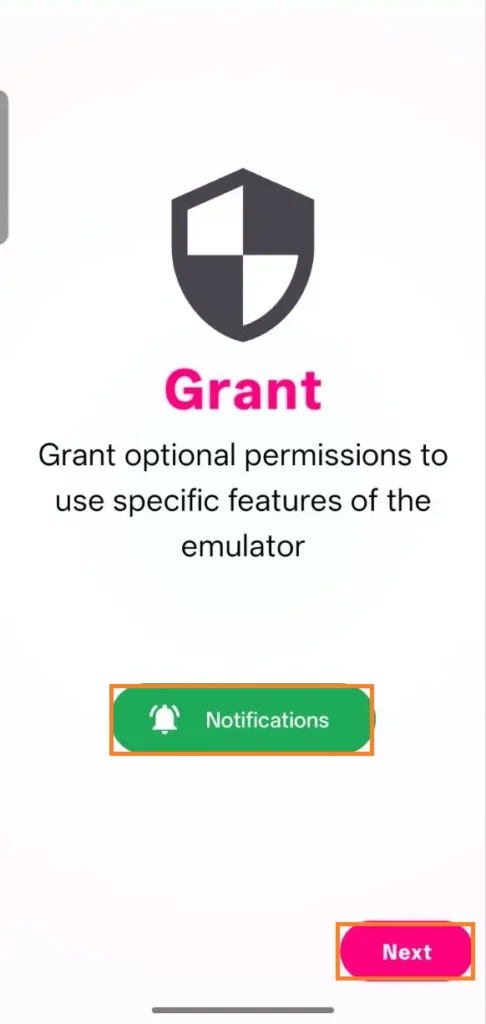
- Accept the legal disclaimers
- Tap on Get Started
- Grant required permissions (like storage and notifications)

These permissions are necessary for the emulator to access your files and run properly.
Add Eden Switch Prod keys File
Next, the emulator will ask you to select the switch keys file, which is required to decrypt and run games.


Steps:
- Tap on Select Keys
- Navigate to your Switch Prod keys file
- Select the file
⚠️ Make sure:
- The file is extracted (not in ZIP format)
- It is the latest version compatible with the firmware
Once selected, Eden will automatically load the keys.
Install Switch Firmware
After adding keys, Eden will prompt you to install firmware.
Steps:

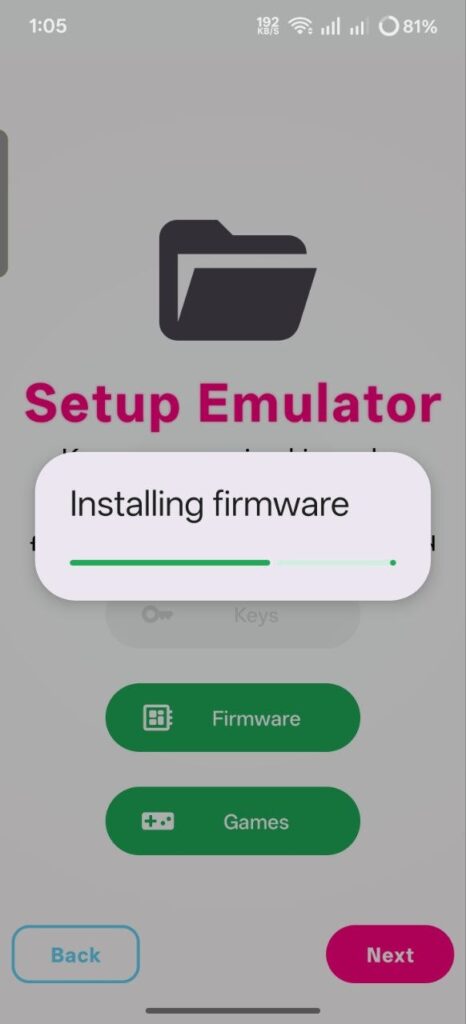
- Tap on Select Firmware
- Choose your firmware file (ZIP format)

⚠️ Important:
- Do not extract the firmware ZIP
- Ensure firmware version matches your prod.keys version
Once selected, the emulator will install it automatically.
Add Games to Emulator
Now you need to tell Eden where your game files are stored.
Steps:
- Tap on Add Games
- Select the folder containing your games
If your games are inside subfolders, Eden will scan and detect them automatically.
After selecting, tap Continue to finish the setup.
Eden Settings Configuration (Important)
Before launching any game, it’s important to configure a few settings for better performance and controls.
🎮 Controls Setup
To configure controls:
- Tap on the Settings (⚙️ icon) from the home screen
- Select Controls
- Choose Player 1
Recommended Settings:
- Controller Type: Set to Handheld (best for mobile)
- Input Mapping Filter: Choose your device or controller
If buttons are not mapped automatically:
- Scroll down and manually map each button
- Test analog sticks carefully
- Avoid mapping Home or Capture (optional)
Take time to test controls properly to avoid issues during gameplay.
GPU Driver Manager (Performance Boost)
GPU drivers play a big role in performance, especially on Snapdragon devices.
Steps:
- Go to Settings → GPU Driver Manager
- Tap Fetch to check recommended drivers
If a recommended driver is available:
- Download it (for example, Turnip drivers)
- Select and apply it
Using the correct GPU driver can:
- Improve FPS
- Fix graphical issues
- Make unsupported games run better
⚙️ Per-Game Settings
Eden allows you to customize settings for each game separately.
How to access:
- Press and hold any game from the home screen
- Open Settings
You can adjust:
- Docked / Handheld Mode
- Shader settings
- GPU driver (per game)
This is useful when one game works better with different settings than others.
🧩 Mods, Updates, and DLC
Eden supports mods, updates and DLC files.
To install mods:
- Go to the Addons section
- Tap Install
- Select the folder containing mod files
Usually, you need to select the folder that contains:
romfsexefs- or cheat files
After installation, you can enable or disable mods anytime.
In-Game Menu & Useful Options
Once you launch a game, you can access the in-game menu easily.
How to open:
- Swipe from the side OR
- Press the Back button
📴 Remove On-Screen Controls
If you are using a controller and want a clean screen:
- Go to Overlay Options
- Tap Toggle Controls → Toggle All → OK
📊 Show FPS & Device Info
To monitor performance:
- Go to Overlay Options
- Enable:
- Performance Stats Overlay (FPS)
- Device Info Overlay
This helps you track FPS, temperature, and performance in real time.
FAQs – Eden Emulator Android Setup
Why is my Eden Emulator not loading games?
This usually happens due to missing or incorrect prod.keys. Make sure the keys are installed properly and match your firmware version.
Do I need firmware to run games in Eden Emulator?
Yes, firmware is required for many games to boot and run correctly. Without it, you may face crashes or black screen issues.
Should I extract the firmware ZIP file?
No, you should not extract the firmware file. Always select it in ZIP format inside the emulator.
Why are my games lagging on Android?
Lag can occur due to high graphics settings or low device performance. Try lowering resolution, enabling multicore CPU, and using Vulkan backend.
What is the best GPU driver for Eden Emulator?
For Snapdragon devices, Turnip drivers are highly recommended as they improve performance and fix graphical issues.
Can I use a controller with Eden Emulator on Android?
Yes, you can connect a Bluetooth or USB controller. The emulator supports most controllers and allows manual button mapping.
Why do I see a “keys missing” error?
This means the emulator cannot detect your prod.keys file. Reinstall the keys and make sure the file is not in ZIP format.
Conclusion
Setting up the Eden Emulator on Android may seem complicated at first, but once you follow the correct steps, the process becomes simple and manageable. The key is to properly install Switch Prod Keys, match them with the correct firmware, and configure your settings based on your device’s performance.
Most common issues like crashes, black screens, or lag usually happen due to incorrect setup or outdated files. By keeping your emulator, keys, and firmware updated, and using the right GPU drivers, you can enjoy a much smoother and stable gaming experience.
Take your time during setup, double-check each step, and once everything is configured correctly, you’ll be able to run your games without major problems.
