
If you’re trying to run Nintendo Switch games on PC or Android, the Eden Emulator setup can feel confusing at first—especially with keys, firmware, and settings involved. Many users face issues like games not launching, black screens, or crashes simply because the setup isn’t done properly.
This guide explains everything in a clear, step-by-step way so you can install Eden Emulator, configure it correctly, and fix common setup problems.
Whether you’re a beginner or already familiar with emulators, this will help you get a stable and working setup.
What is Eden Emulator and How It Works
Eden Emulator is a Nintendo Switch emulator designed to run Switch games on compatible devices like Windows PCs and Android smartphones. It works by recreating the Switch environment, allowing your system to process game files just like a real console.
To function properly, the Eden switch emulator requires switch keys (prod.keys) and firmware files, which help decrypt and run the game. Without these files, the emulator cannot load games, which is one of the most common issues beginners face. Understanding this basic requirement is important before starting the setup.
What You Need to Get Started with Eden Emulator (Complete Requirements)
Before you start using the Eden Emulator, it’s important to have all the required files ready. Without these essential components, the emulator will not be able to load or run Nintendo Switch games properly. Many common errors, such as games not launching or “missing keys” issues, usually happen because one of these files is missing or not set up correctly.
Below are the core requirements you need to set up Eden Emulator successfully.
1. Eden Emulator (Latest Version)
The first thing you need is the Eden Emulator software itself. This is the main program that allows your device to simulate the Nintendo Switch environment.
Always download and use the latest version of Eden Emulator, as newer updates improve compatibility, fix bugs, and provide better performance. Running an outdated version can lead to crashes, lag, or unsupported game errors.
2. Prod.keys File (Essential for Decryption)
The prod.keys file is one of the most important components. It works as a decryption key that allows the emulator to read and run encrypted Nintendo Switch game files.
If the prod.keys file is missing, outdated, or placed incorrectly, the emulator will show errors like:
- “Keys not found”
- “Failed to load game”
Make sure you use a compatible and updated prod.keys file that matches your firmware version for the best results.
3. Firmware Files (System Environment)
The firmware files are required to recreate the original Nintendo Switch system environment inside the emulator. These files help ensure that games, updates, and DLC content work correctly.
Installing the correct firmware version improves:
- Game compatibility
- Stability
- Overall performance
Without firmware, many games may fail to start or crash during gameplay.
Having all these files correctly set up will help you avoid common setup issues and ensure that your Eden Emulator setup runs smoothly from the start.
Eden Setup Guide 2026 – How to Set Up the Eden Switch Emulator (Step-by-Step)

Setting up the Eden Emulator correctly is important if you want smooth gameplay without errors. Many users face problems later—like games not launching, updates failing, or DLC not working—simply because one or two steps were skipped during setup.
Follow each step below carefully. This complete guide will help you install Eden Emulator, install Eden decryption keys and firmware, and add your game files. properly, so everything works without any issues.
1. Download and Install Eden Emulator
Start by downloading the latest version of Eden Emulator from a trusted source. Make sure you select the correct version for your operating system, such as Windows, Linux, or macOS.
Once the file is downloaded, extract it to a simple location like Documents or Desktop. Avoid placing it inside system folders like Program Files, as this can sometimes cause permission issues.
After extraction, open the emulator by running the main file (for example, Eden.exe on Windows). The emulator will launch directly without requiring a full installation.
2. Keep Eden Emulator Updated
Using the latest version of Eden is important for better performance and compatibility. Older versions may cause crashes, bugs, or unsupported game errors.
To check for updates:
- Open Eden Emulator
- Click on Help in the top menu
- Select Check for Updates

If an update is available, follow the on-screen instructions to install it. Once done, restart the emulator or your system to apply the changes properly.

If the update option doesn’t work, you can manually download the latest version from the official Eden website. Replace your old files with the updated ones, and you’re good to go.
3. Install Prod.keys and Title.keys
The prod.keys and title.keys files are essential for running games. These files allow the emulator to decrypt and read game data.
Steps to install keys:
- Open Eden Emulator
- Go to Tools
- Click on Install Decryption Keys
- Select the folder where your keys are stored

Make sure the files are extracted and not in ZIP format. After installation, Eden will automatically detect the keys.
If you update your firmware later, you may also need to update your keys for compatibility.
4. Install Firmware in Eden Emulator
Firmware files are required to recreate the Nintendo Switch system environment. Without firmware, many games may fail to launch or crash.
Steps to install firmware:
- Open Eden Emulator
- Go to Tools
- Click on Install Firmware
- Select your firmware file

Wait for the installation to complete. This usually takes a few moments.
⚠️ Always ensure your firmware version matches your prod.keys version. Mismatched versions can cause boot errors or game crashes.
5. Add Games to Eden Emulator
After completing the setup, you can now add your games. Eden supports popular formats like NSP and XCI.
Steps to add games:
- Open Eden Emulator
- Click on Add New Game Directory
- Select the folder where your game files are stored

If your games are inside subfolders, enable the option to scan subdirectories so all files are detected.

Once added, your games will appear in the emulator library. If you add new games later, simply refresh the list.
6. Manage Game Updates and DLC
Eden also allows you to install game updates and downloadable content (DLC).
You can manage these from the same section where your games are listed. After adding Eden updates or DLC, always refresh the game list so the changes are applied correctly.
Keeping your games updated helps improve compatibility and reduces in-game issues.
7. Configure Settings for Optimal Performance (Smooth Gameplay Setup)
Before you start playing, it’s important to properly configure Eden Emulator settings. Default settings may not work well for every system, and a few adjustments can significantly improve performance, reduce lag, and prevent crashes.
Take a few minutes to go through these settings to get the best experience
Graphics Settings (Most Important)
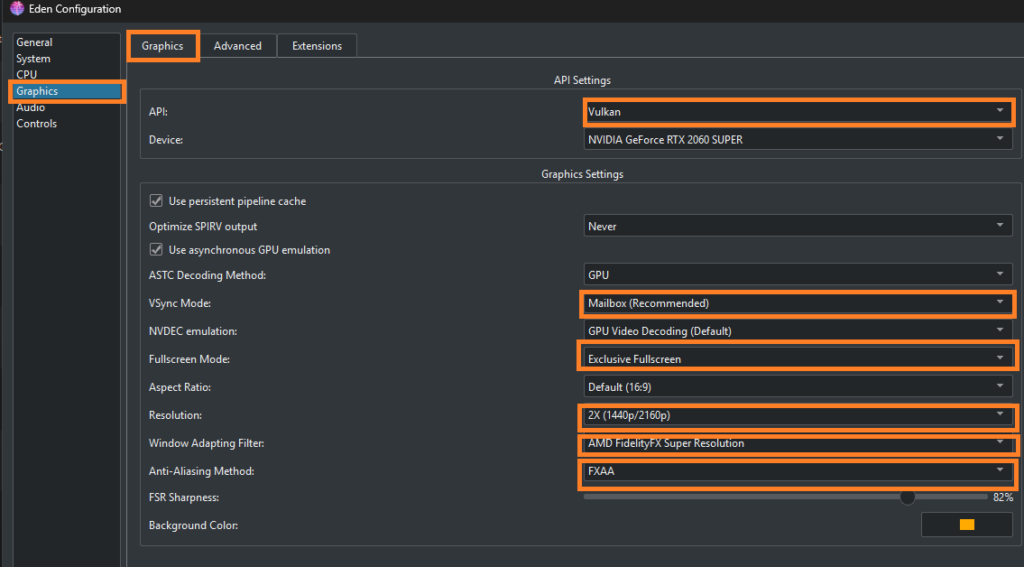
Graphics settings directly affect performance and visual quality. Choosing the right configuration can eliminate lag and improve FPS.
- Graphics Backend: Use Vulkan for better performance (recommended for most systems). If you face issues, switch to OpenGL.
- Resolution Scaling: Keep it at 1x for low-end systems. Increase it (2x or higher) only if your system can handle it.
- VSync: Enable to prevent screen tearing, but disable it if you notice input lag.
- Fullscreen Mode: Use fullscreen for better performance and smoother rendering.
- Anisotropic Filtering: Set to 2x or 4x for better textures without much performance impact.
CPU & System Settings
These settings help improve processing efficiency and reduce stuttering.
- Multicore CPU Emulation: Enable this option for better performance on modern processors.
- CPU Accuracy: Set to “Auto” or “Balanced” for stable gameplay.
- Threaded Optimization: Keep enabled for smoother performance.
- Background Apps: Close unnecessary apps to free up RAM and CPU usage.
Controller Settings
Configuring your controller properly ensures a smooth and responsive gaming experience.
- Map your controller buttons according to your preference
- Use the default Pro Controller layout if you’re unsure
- Test inputs before starting a game to avoid control issues
- Adjust sensitivity if you’re using analog sticks
Per-Game Settings (Game-Specific Optimization)
Not all games run the same way, so Eden allows you to customize settings for each game individually.
- Docked Mode: Enable for higher resolution (requires better hardware)
- Handheld Mode: Use for better performance on low-end systems
- Shader Cache: Enable to reduce stuttering during gameplay
- Custom FPS Limit: Adjust if a game runs too fast or is unstable
Performance Optimization Tips
These extra tweaks can further improve your gameplay experience:
- Keep your GPU drivers updated
- Use an SSD instead of an HDD for faster loading
- Avoid running heavy software in the background
- Lower resolution if you experience lag or frame drops
- Restart the emulator after changing major settings
Common Setup Errors in Eden (Fix Guide)
While setting up the Eden Emulator, it’s normal to run into a few errors. The good news is that most of these issues are easy to fix once you understand what’s causing them.
Below are the most common problems and their simple solutions.
❌ “Eden decryption keys missing” Error
This is one of the most common errors users face.
Cause:
The emulator cannot find the required prod.keys file.
Fix:
- Make sure your prod.keys file is installed correctly
- Go to Tools → Install Decryption Keys
- Ensure the file is not in ZIP format
- Use the latest keys version compatible with your firmware
❌ Games Crashing on Launch
If your game closes immediately after starting, it’s usually due to compatibility issues.
Cause:
- Outdated firmware
- Old emulator version
- Incorrect settings
Fix:
- Update your Eden Emulator to the latest version
- Install the latest compatible firmware
- Reset or adjust graphics settings
❌ Black Screen Issue
Sometimes games load but only show a black screen.
Cause:
Graphics backend or rendering issues.
Fix:
- Switch Graphics Backend (Vulkan ↔ OpenGL)
- Restart the emulator after changing settings
- Make sure Eden firmware is installed correctly
❌ Lag, Stuttering, or Low FPS
Performance issues are common, especially on low-end systems.
Cause:
High graphics settings or system limitations.
Fix:
- Lower resolution scaling (set to 1x)
- Enable Multicore CPU Emulation
- Close background apps
- Use the Vulkan backend for better performance
❌ Controller Not Working
Your controller may not respond properly in-game.
Cause:
Incorrect mapping or connection issue.
Fix:
- Reconnect your controller
- Go to Controller Settings and remap buttons
- Use the default Pro Controller layout
Frequently Asked Questions (FAQs)
Can Eden Emulator run without prod.keys?
No, the emulator requires prod.keys to decrypt and run game files. Without it, games will not start.
Why is my game not showing in the emulator?
Make sure you have added the correct game directory and the file format is supported (NSP/XCI).
Does Eden Emulator work on low-end devices?
It may run, but performance will be limited. A mid-range or high-end device is recommended for smooth gameplay.
What File Formats Does Eden Emulator Support?
Eden Emulator supports .XCI and .NSP file formats for Nintendo Switch games. Ensure your game files are in these formats for compatibility.
Can I Use Joy-Con Controllers with Eden Emulator?
Yes, Joy-Con controllers can be used with Eden Emulator. Pair them via Bluetooth and configure the controls in the emulator settings.
Final Thoughts
Setting up the Eden Emulator in 2026 is not difficult once you understand the basics. The key is to correctly add keys, install firmware, and configure settings based on your system. Most issues users face come from missing files or incorrect setup, which can be fixed easily.
If you follow this guide step by step, you should be able to run your games smoothly without major problems. Take your time with the setup, test settings properly, and you’ll get a stable and enjoyable experience.
