
Setting up Suyu Emulator on your PC is easier than it looks once you understand the basic steps. To run Nintendo Switch games properly, you need three main things: the emulator itself, decryption keys, and the correct Switch firmware.
Many users face issues like missing keys, errors, or games not loading, but these problems usually come from an incomplete Suyu setup.
In this guide, you’ll learn the exact process to install everything correctly so your emulator runs smoothly and your games load without issues.
- 1 Understanding Emulators
- 2 Why Use Suyu Emulator?
- 3 System requirements for Suyu Emulator?
- 4 Step 1: Download and Open Suyu Emulator
- 5 Step 2: Install Prod.keys and Title.keys
- 6 Step 3: Install Nintendo Switch Firmware
- 7 Step 4: Set Up Suyu Emulator
- 8 Step 5: Download Nintendo Switch Games
- 9 Step 6: Add Your Game Folder
- 10 Step 7: Launch and Play Games
- 11 Quick Troubleshooting
- 12 FAQs: How to Set Up and Use Suyu Emulator
Understanding Emulators
An emulator is a program that lets your computer act like another system. In this case, Suyu Emulator makes your PC behave like a Nintendo Switch so that you can run Switch games without the actual console.
Why Use Suyu Emulator?
Suyu Emulator is popular because it’s easy to use, runs smoothly, and supports many Nintendo Switch games. It doesn’t require a complicated setup, making it a good choice for beginners who want to play without dealing with technical steps.
System requirements for Suyu Emulator?
- Operating System: Windows 10/11 (64-bit)
- Processor: Intel i5 or AMD equivalent
- RAM: Minimum 8GB (16GB recommended)
- Graphics Card: NVIDIA GTX 1050 or higher
- Storage: At least 10GB of free space
Step 1: Download and Open Suyu Emulator
- Download the latest version of Suyu Emulator from a trusted source
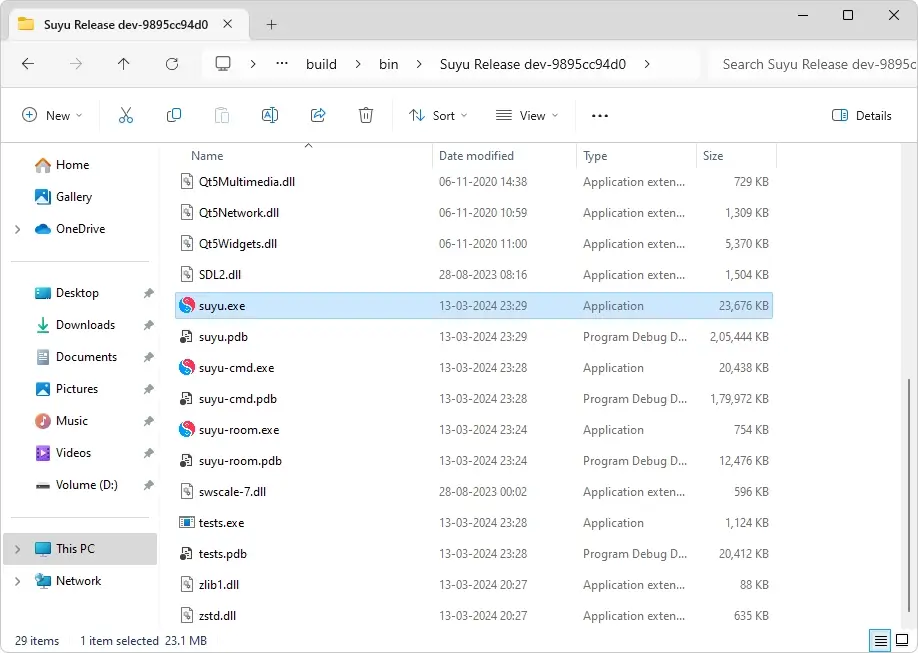
- Right-click the downloaded ZIP file → Click Extract All
- Choose a folder (e.g.,
C:\Suyu) - Open the folder and double-click suyu.exe
- Allow any permission if prompted
Tip: Create a desktop shortcut for quick access.
Step 2: Install Prod.keys and Title.keys
These keys are required to decrypt and run games.

- Download Suyu prod.keys and title.keys
- Open Suyu → Click File → Open Suyu Folder
- Go to:
user → keys - Paste both files into the keys folder
Important checks:
- Files must be extracted (not ZIP)
- Names should be exactly prod.keys and title.keys
Restart the emulator after adding the keys.
Step 3: Install Nintendo Switch Firmware
Firmware allows the emulator to function like a real Switch.
- Download the latest firmware (ZIP file)
- Extract it to a folder (e.g.,
C:\Firmware)
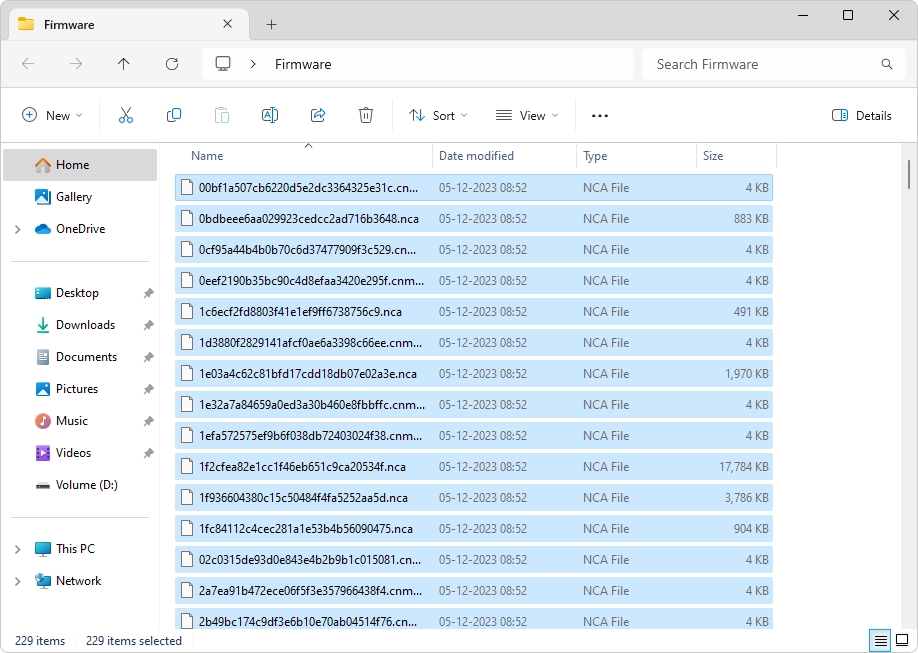
Now install it:
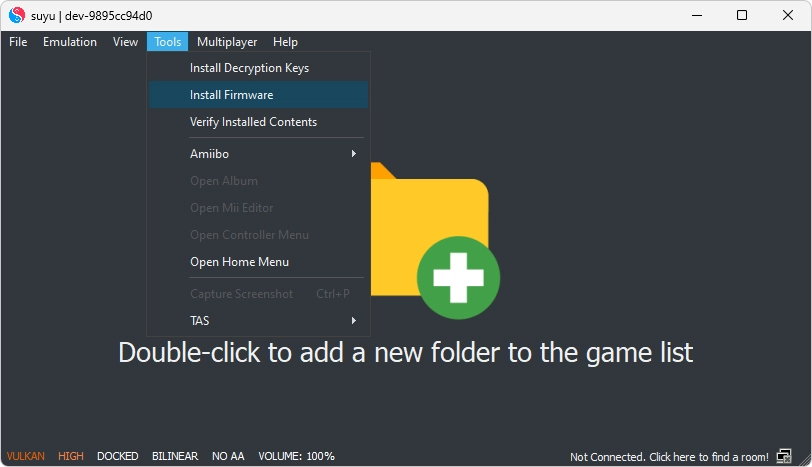
- Open Suyu
- Go to Tools → Install Firmware
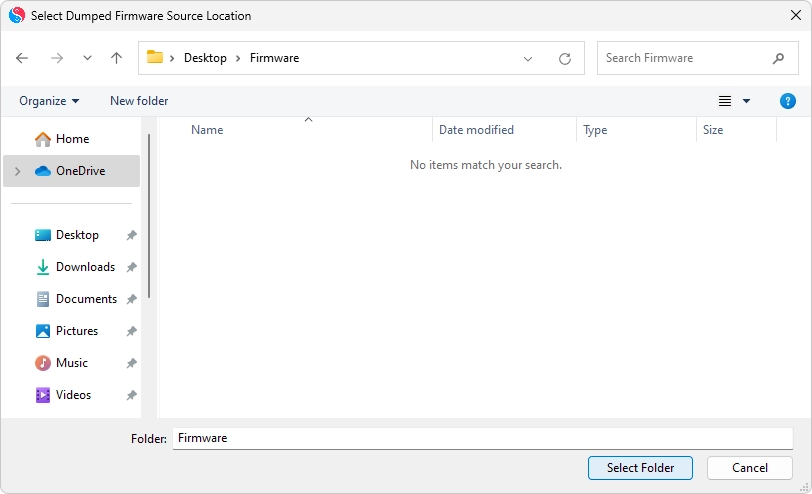
- Click Install from ZIP/XCI
- Select the firmware file and confirm
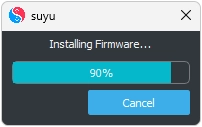
Wait for the process to complete, then restart the emulator.
Step 4: Set Up Suyu Emulator
After installing everything, you need to configure Suyu Emulator for the best performance and smooth gameplay.
Initial Setup (First Launch)
When you open Suyu Emulator for the first time, you’ll see a settings window. This is where you adjust basic options based on your PC.
Take a minute to review these settings so the emulator runs properly on your system.
Graphics Settings
Go to the Graphics tab and choose the right settings for your PC:
- API: Use Vulkan for better performance (especially for NVIDIA/AMD GPUs)
- Resolution Scaling: Set to 1x–2x for low-end PCs, higher for powerful systems
- Fullscreen/Window Mode: Choose based on your preference
Balanced settings will give you smoother gameplay without lag.
Controller Settings
Open the Controller tab to set up your controls:
- You can use a keyboard & mouse or a game controller
- If using a controller, connect it before opening the emulator
- Map buttons according to your comfort
Proper control setup makes gameplay much easier and more enjoyable.
Audio Settings
In the Audio tab:
- Keep the default audio driver for best compatibility
- Adjust volume levels as needed
- If you hear crackling, slightly increase audio latency
This helps maintain clear and stable sound during gameplay.
Optional: Experimental Settings
Suyu Emulator also includes some advanced options:
- These can improve performance on certain games
- However, they may cause bugs or instability
Only enable these if needed and test carefully.
Once configured, your Suyu Emulator setup is ready for smooth and stable gameplay.
Step 5: Download Nintendo Switch Games
To play games on Suyu Emulator, you need game files, usually in NSP or XCI format.
It’s important to only use games you legally own. Using unauthorized or pirated copies is illegal and can cause issues with your emulator setup.
Use Your Own Nintendo Switch Games
The safest and recommended method is to dump games from your own Nintendo Switch console. This means creating a digital copy of games you already own using supported tools.
This ensures:
- You stay within legal use
- Your game files are clean and compatible
- Fewer errors while running games
Step 6: Add Your Game Folder
Now add your games to the emulator.
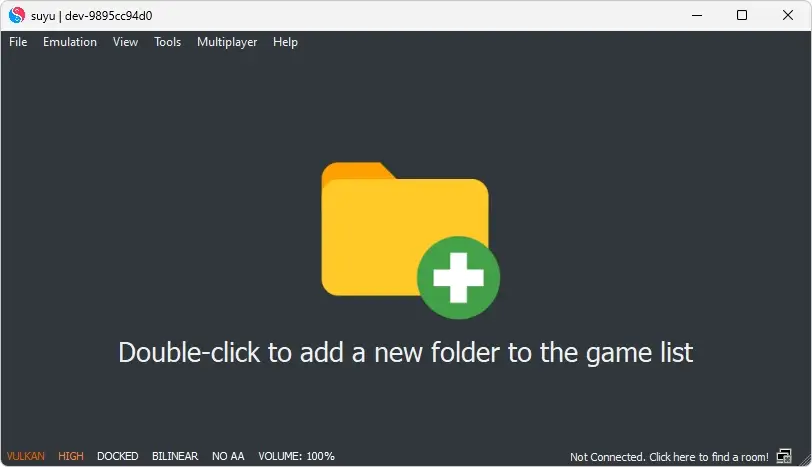
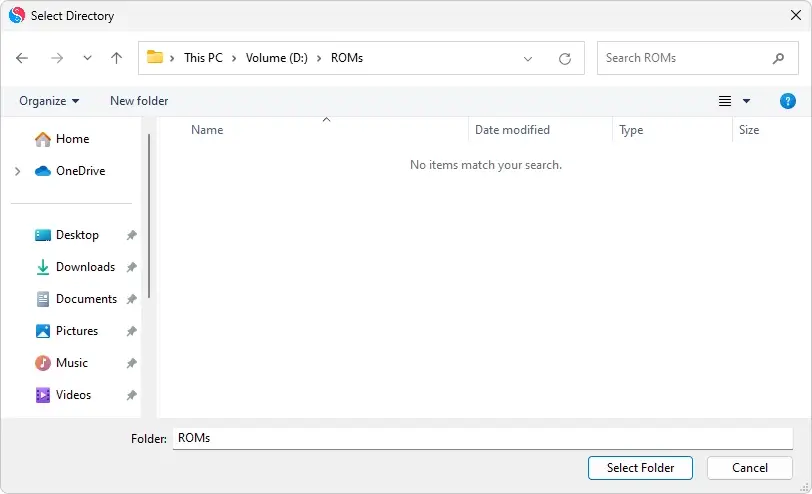
- Store your games in one folder (NSP/XCI format)
- Open Suyu
- Click Add New Game Directory
- Select your game folder
The emulator will scan and display your games on the main screen.
Step 7: Launch and Play Games
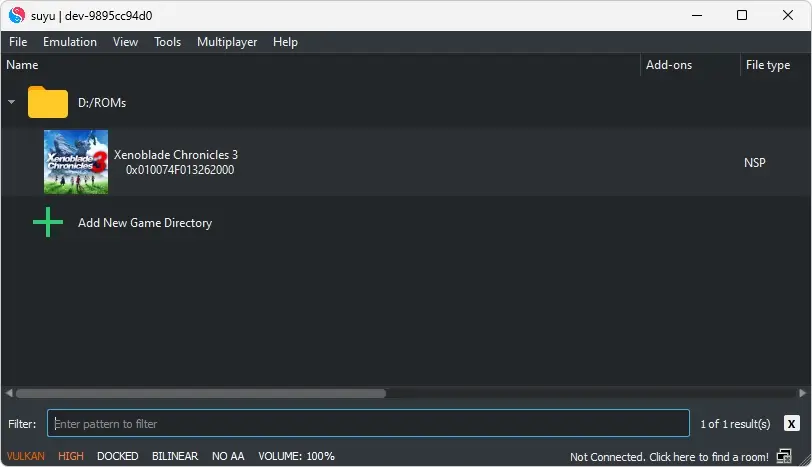
- Double-click any game from the list
- The game will start automatically
- Connect a controller or use keyboard controls
Quick Troubleshooting
- Game not showing: Check file format (.NSP/.XCI) and folder path
- Missing keys error: Recheck the switch keys folder and restart the emulator
- Game crashes: Update firmware, keys, and emulator
- Low performance: Lower graphics settings in the configuration
FAQs: How to Set Up and Use Suyu Emulator
What files do I need to set up the Suyu Emulator?
To set up the emulator, you need:
Prod.keys: Decryption keys for games.
Title.keys: Additional keys for game updates and DLCs.
Nintendo Switch Firmware: To replicate the console’s operating system.
Can I play all Nintendo Switch games on Suyu Emulator?
Most games are supported, but compatibility depends on the emulator version, firmware, and keys. Some newer games may require updated keys or firmware.
How do I fix black screen errors on Suyu Emulator?
Ensure the prod.keys and firmware are correctly installed.
Update the emulator to the latest version.
Check your system’s graphics drivers and update them if necessary.
What file formats does Suyu support?
Suyu Emulator supports:
NSP (digital game files)
XCI (cartridge dumps)
Which is better: Vulkan or OpenGL in Suyu?
For most users, Vulkan offers better performance and fewer stutters. However, if you face graphical issues, try switching to OpenGL.
Can I play Suyu games without a controller?
Yes, you can use a keyboard and mouse, but a controller provides a better and more natural gaming experience.
